
Tagging
Top pages
What this does
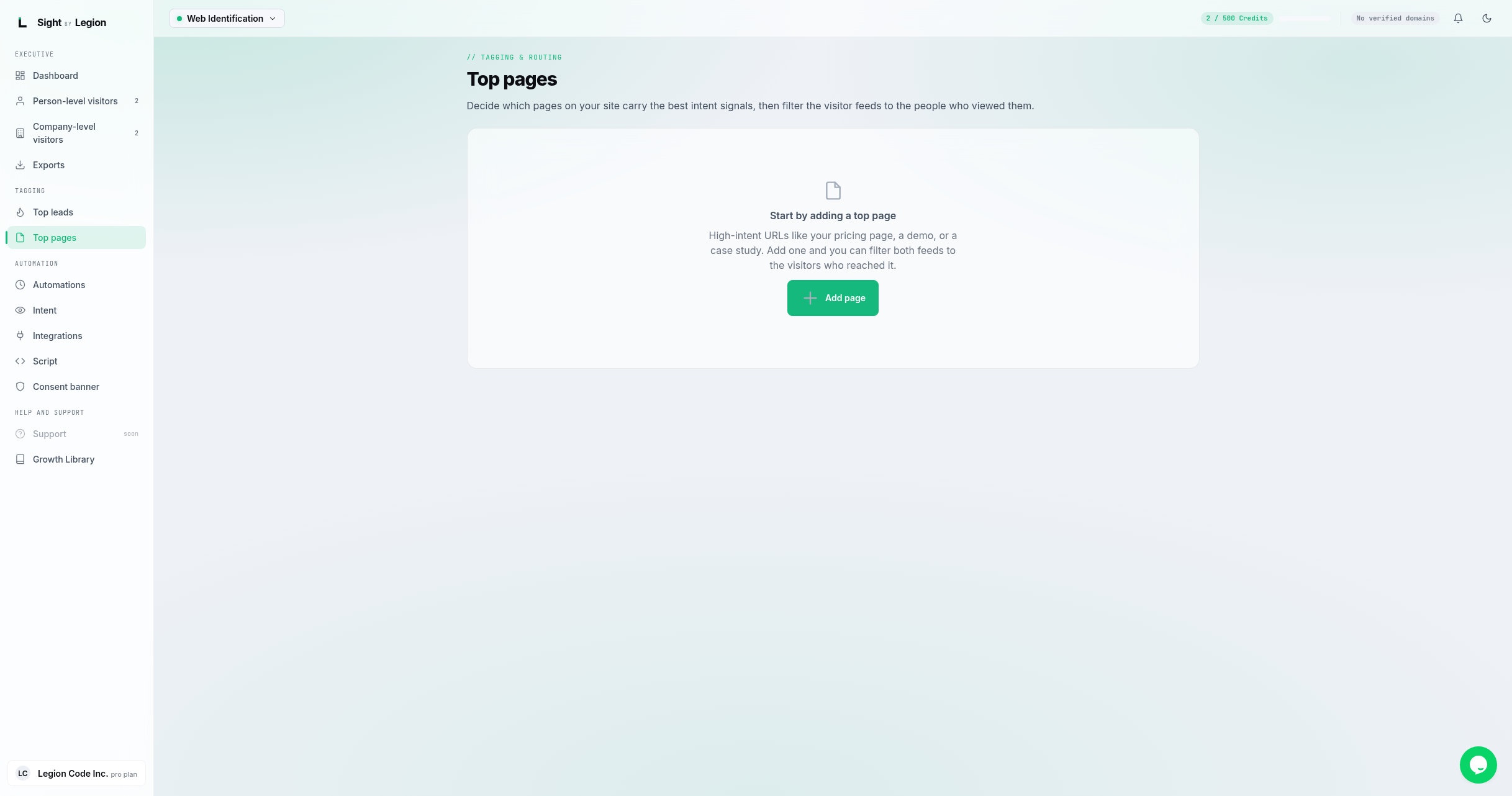
Top pages lets you mark the URLs on your site that carry the best intent (your pricing page, a demo, a case study). Once a page is marked, you can see how many visitors and top leads reached it.
Steps
- Open Observe -> Top Pages.
- Click Add page.
- In the dialog:
- Page URL or path: the page (or pattern) you want to track. The host, query string, and trailing slash are ignored, so
/pricingand/pricing/?utm=xmatch the same page. - Match type: how the pattern should match. There are two options:
- Exact: the path equals this exactly.
- Prefix: the path starts with this. (A prefix of "/" matches every page on your site.)
- Page URL or path: the page (or pattern) you want to track. The host, query string, and trailing slash are ignored, so
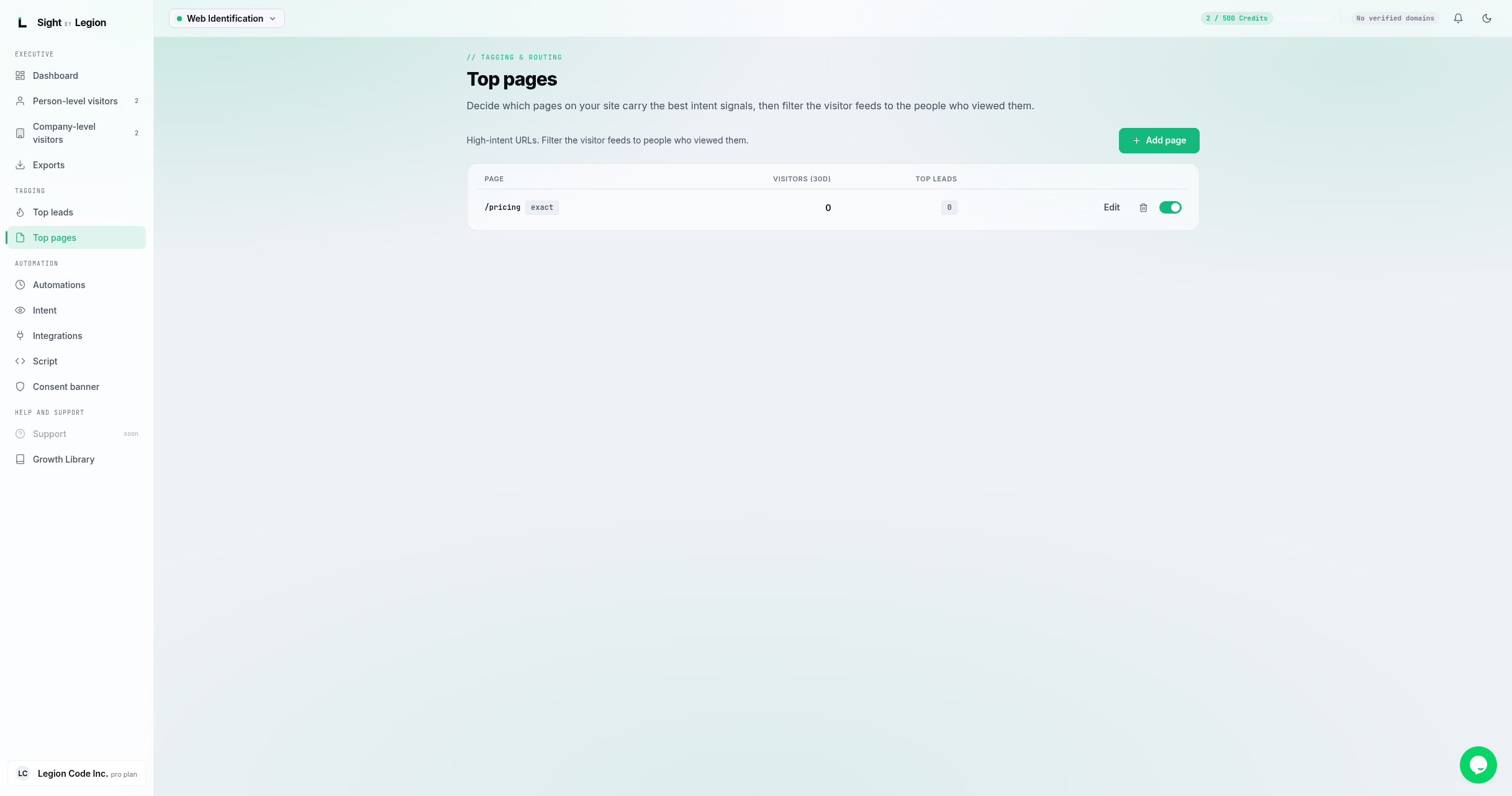
- Click Add page to save. The page appears in the table.
- Review the table columns for each page:
- Page.
- Visitors (30d): visitors who reached it in the last 30 days.
- Top leads: how many of those were top leads.
Tips & FAQs
- Owners and admins only for editing. Members can view; they are prompted to ask an owner or admin to add a page.
- Pick high-intent URLs. Pages like pricing, demo requests, and case studies are the strongest signals.
- Edit any time. Use the edit control on a row to change a page's pattern or match type (Exact or Prefix).