
Getting started
A tour of the portal
What this does
Gives you the lay of the land: the left sidebar groups, the account menu, and what each area is for, so you know where to go next.
The sidebar groups
The left sidebar is organized into groups. You see the groups that apply to your role and account type.
- Observe: what is happening on your site right now.
- Dashboard: your identification volume, top pages, and campaign attribution.
- Analytics: traffic and behavior over time.
- Top Pages: high-intent URLs you want to track.
- Heatmaps: where visitors click and scroll.
- Intent: score visitors on behavioral signals (scrolls, video, downloads, form submits).
- Script: your install snippet, domains, and capture settings.
- Score: qualifying and ranking what you observed.
- Top Leads: rules that tag and route your best-fit visitors.
- Automations: trigger on how often a visitor returns (velocity rules).
- Profile: who your visitors are.
- People: the feed of identified people.
- Companies: the feed of identified companies.
- Contacts: your own contact roster. Owners, admins and agency admins only.
- Businesses: your own business roster. Owners, admins and agency admins only.
- Enrichment: deep enrichment and AI insights.
- Form Mapping: send your own site's form fields into a contact record.
- Reach: getting the data and the message back out.
- Pop-ups: ask a known visitor one question on your own site.
- Outbound Integrations: connect your CRM, Slack, sequencers, webhooks, and more.
- Exports: download your identified profiles as CSV.
- Inbound Integrations: bring contacts in. Owners, admins and agency admins only.
- HighLevel: a shortcut that appears once a HighLevel connection exists.
- Company Profile, Professional Profile, Products & Services, Templates, Documents, Prompts: the material the AI writes from.
- Yield: the answers you get back out.
- HarleyQ Chat and HarleyQ Roll-up Insights.
- Help and support
- Support: reach the support team.
Agency accounts get their own rail instead, reached from the product switcher on the far-left dock: Dashboard, Sub Accounts (Sub Account Dashboard, Plans, Rebilling) and White-label (Branding, Domains, Email).
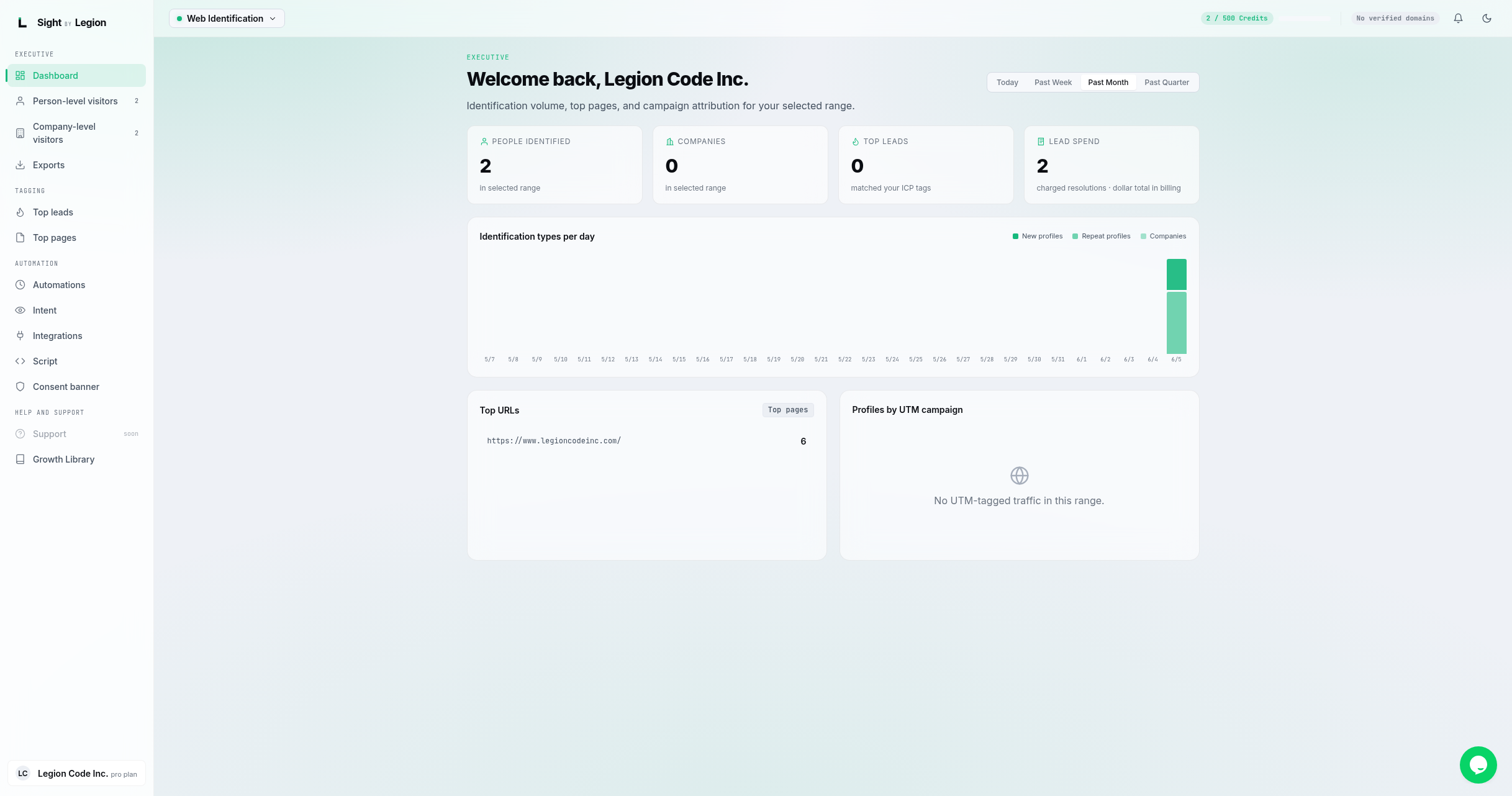
The account menu
The account menu sits at the bottom of the far-left dock and holds account-wide settings:
- My Profile (your own name, phone, address and LinkedIn).
- Settings (company name, timezone, ICP, enrichment). Its tabs also hold Notifications (daily CSV opt-in and recipient emails) and Geo restrictions (the US-only vs global consent control).
- Users (your team and their roles).
- Security.
- Compliance (setup checklist, consent banner, geo and scope).
- Billing (subscription, usage, invoices) and Wallet. Available to owners, admins and agency admins only.
- Log out.
Tips & FAQs
- "Coming soon" items. Some sidebar entries may appear dimmed with a "coming soon" tag. Those features are not available on your account yet; they become active as they ship.
- Badges. Some entries (people, companies, top leads) can show a count badge so you can see new activity at a glance.
- What you see depends on your role and plan. If a teammate sees something you do not, it is usually a role or plan difference. See Roles and what each one can see.
- Agency vs direct. Only agency accounts see the Agency rail and the sub-account console.