
Automation
Connecting an integration
What this does
Walks through connecting a single integration so OSPRY starts delivering identified profiles to it, and shows how to manage delivery scope, health, and the connection afterward.
Steps
- Open Reach -> Outbound Integrations and click the connector you want.
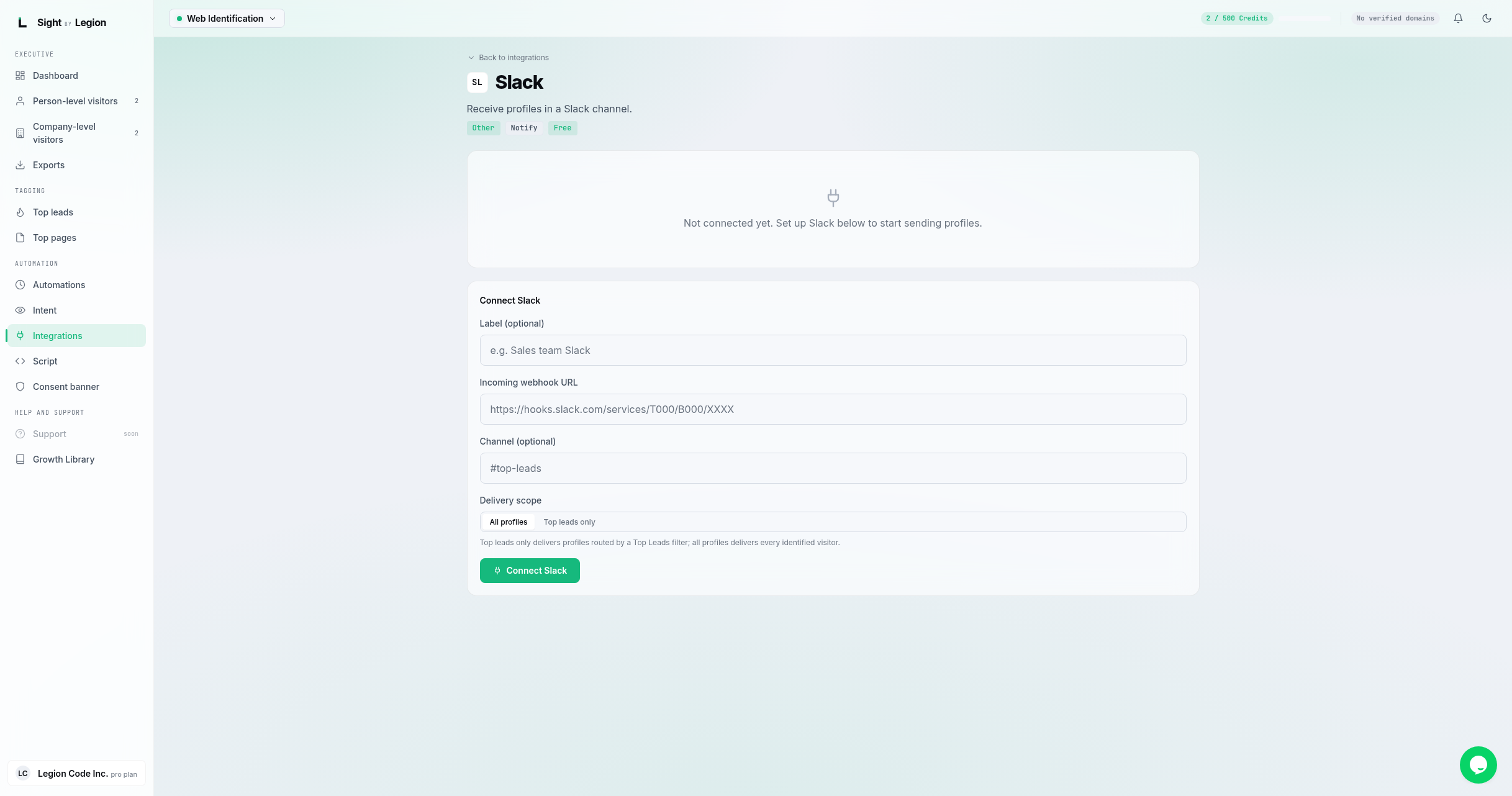
- On the connector page, review the badges: its category, direction, and whether it is Free or Pro. If it is a Pro connector your plan does not include, you will see an upgrade prompt instead of a connect form.
- In the connect form:
- Label (optional): a name for this connection, for example "Sales team Slack".
- Fill in the connector's fields (for example an API key, URL, or token). Required fields are shown per connector.
- Delivery scope: choose All profiles (every identified visitor) or Top leads only (only visitors routed by a Top Leads filter).
- Click Connect (or Add connection if you already have one).
- The connection appears with its status and a delivery health summary.
Managing a connection
Once connected, each connection card shows:
- Status: Enabled or Disabled, plus the delivery scope.
- Delivery health: counts for Delivered, Failed, Dead, Pending, and Total, and a recent-failures table when there are problems.
- Actions: Edit configuration, Enable/Disable, Disconnect, and a quick scope switch.
Webhooks specifically
The Webhook connector delivers to any HTTPS endpoint. After you create one, OSPRY shows a signing secret once (copy it then; it is not shown in full again). Each delivery is signed; verify the X-Sight-Signature, X-Sight-Idempotency-Key, and X-Sight-Event headers on your endpoint. You can Rotate secret later (update your endpoint before the old secret stops being accepted).
Tips & FAQs
- Owners and admins only. Members have read-only access.
- Top leads only is a great way to keep a CRM or ad audience focused on your best-fit visitors. Set up Top Leads filters first.
- Watch the health stats. Repeated failures or "dead" deliveries usually mean a bad credential or an endpoint that is rejecting requests; open the recent failures table for the response code and error.
- Disconnecting stops delivery and removes that connection's history; you will be asked to confirm.