
Tagging
Top leads
What this does
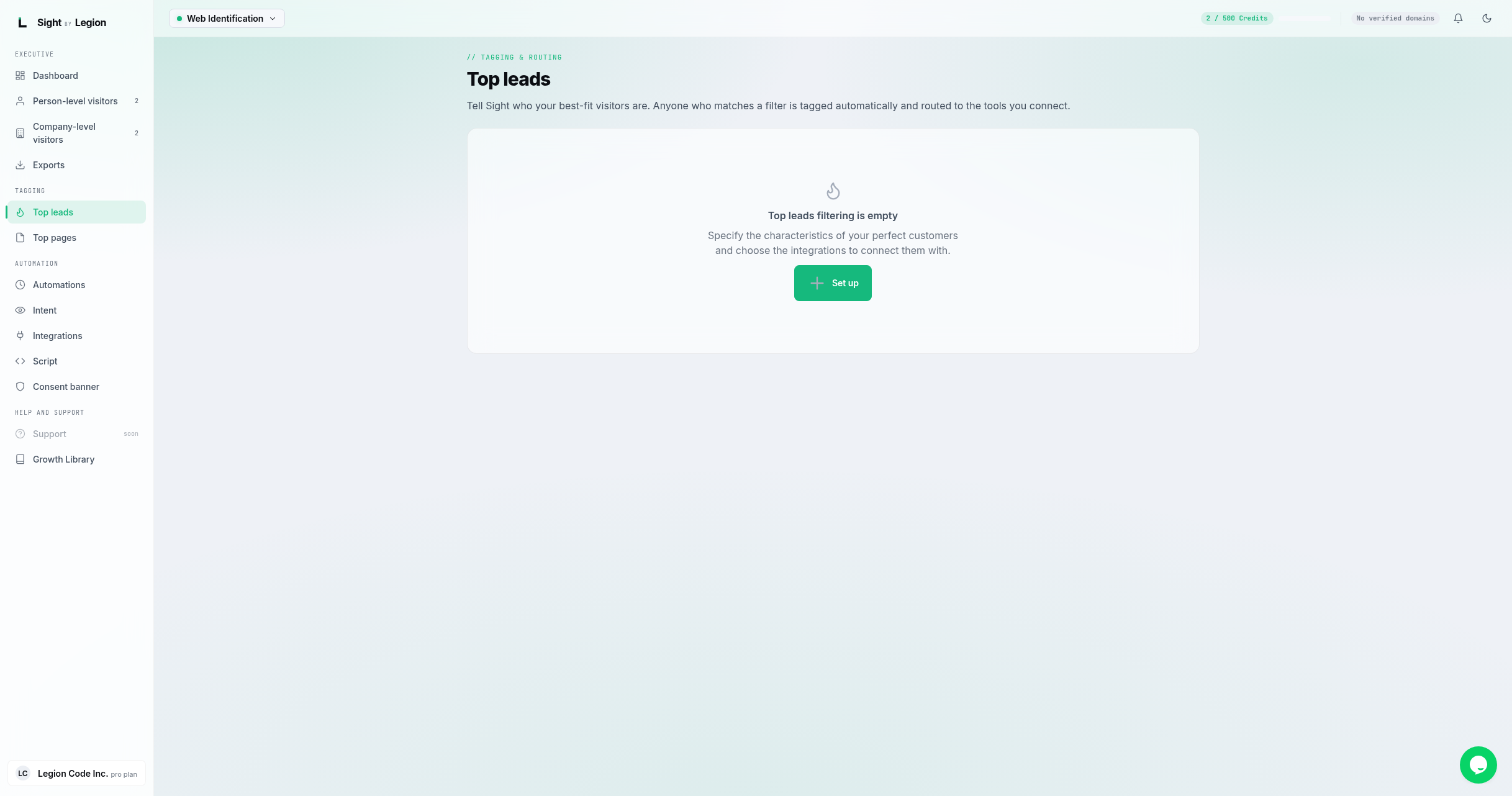
Top leads lets you tell OSPRY who your best-fit visitors are. Anyone who matches a filter is tagged automatically (you see a "top lead" tag in the feeds) and routed to the tools you connect.
Steps
- Open Score -> Top Leads.
- Click Set up (first time) or New rule.
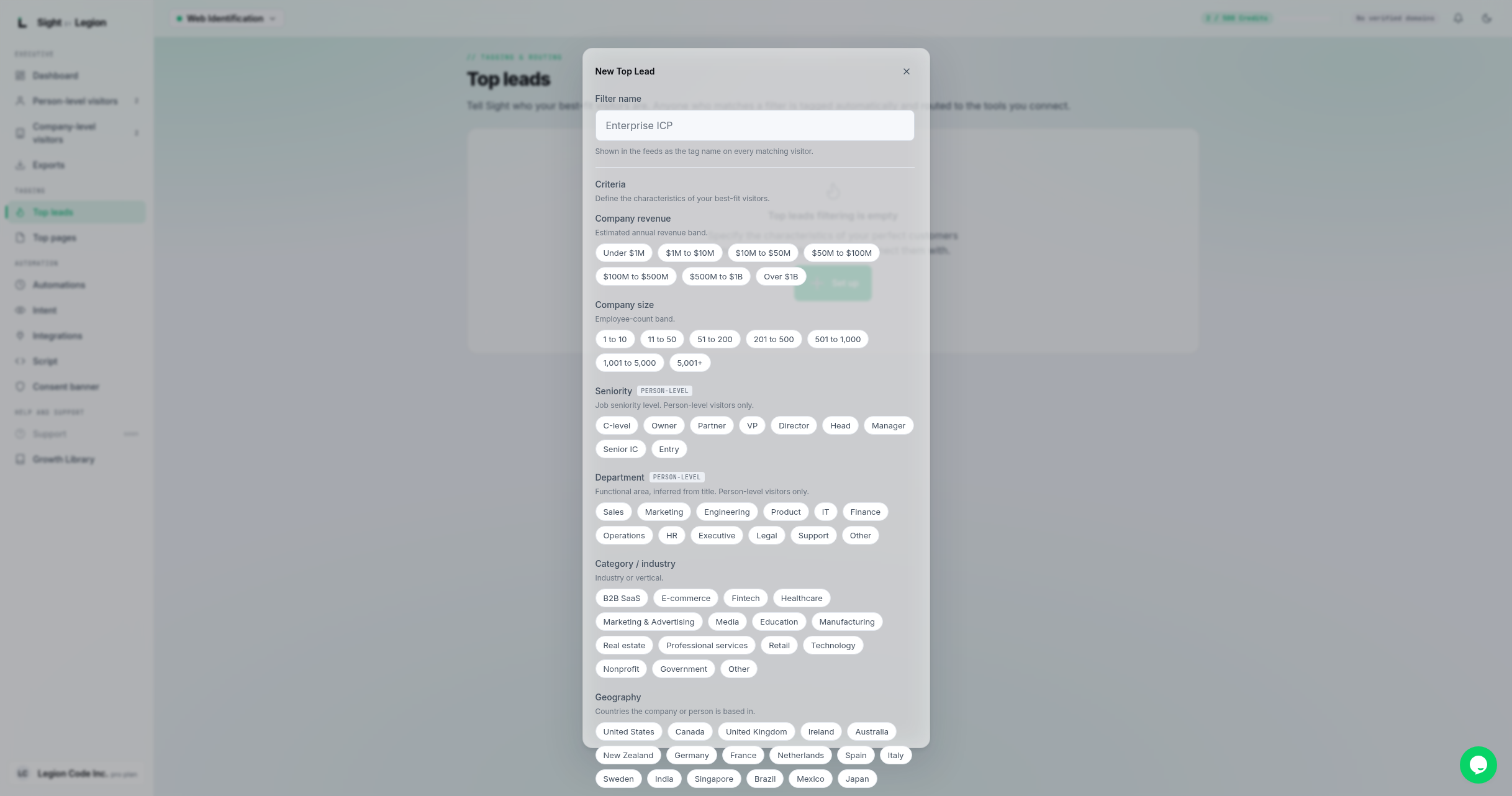
- In the dialog:
- Filter name: a label, shown as the tag on every matching visitor (for example, "Enterprise ICP").
- Criteria: define your best-fit characteristics. Available dimensions include company revenue, company size, seniority, department, category, and geography (countries).
- Destinations (optional): pick connected integrations to route matching visitors to.
- Click Create filter (or Save changes when editing).
- Matching visitors are tagged and pushed to the connected destinations automatically.
Tips & FAQs
- Owners and admins only for editing. Members can view existing filters; they see a prompt to ask an owner or admin to set one up.
- The name becomes the tag. Choose a clear filter name; it appears on every matching visitor card and profile.
- Destinations are optional. A filter can simply tag visitors, or it can also route them. Connect tools first on the Integrations page if you want routing. See Connecting an integration.
- Deliver scope. On an integration, you can choose to deliver "Top leads only" so a destination only receives visitors matched by a Top Leads filter.
- Edit any time. Use the edit control on a rule row to change its criteria or destinations.