
Getting started
Roles and what each one can see
What this does
Explains the roles in OSPRY and what each one can do, so you can give teammates the right level of access.
The roles
OSPRY uses these roles:
- Owner: full control of the account, including billing and account deletion.
- Admin: full control of day-to-day settings and configuration, including billing.
- Member: can use and view the product, but cannot change most settings.
- Agency admin: on agency accounts, manages the agency and its client sub-accounts (including billing).
Owners, admins, and agency admins are the privileged roles. They can change settings that members cannot.
What members can and cannot do
Members can browse the visitor feeds, open profiles, and view most pages. Members generally cannot create or change configuration. In practice:
- Top leads / Top pages / Automations / Intent: members can view existing rules, but the create and edit controls (for example "Add page") are hidden. Editing is limited to owners and admins.
- Integrations and ABM advertising: members have read-only access. Connecting, setting up, or changing a destination is limited to owners, admins, and agency admins.
- Consent banner: members can view it, but editing is limited to owners, admins, and agency admins.
- Geo restrictions and Compliance: only owners and admins can change these (they are compliance controls). Agency admins cannot change them.
- Billing: only owners, admins, and agency admins can open the Billing page; members do not see it at all.
- Account settings, Users, Notifications: editing is limited to owners, admins, and agency admins. Members can view.
- Daily CSV export opt-in: members can view exports, but only owners, admins, and agency admins can toggle the daily email.
Tips & FAQs
- Who is the Owner? The person who first claimed the account. See Claiming your account.
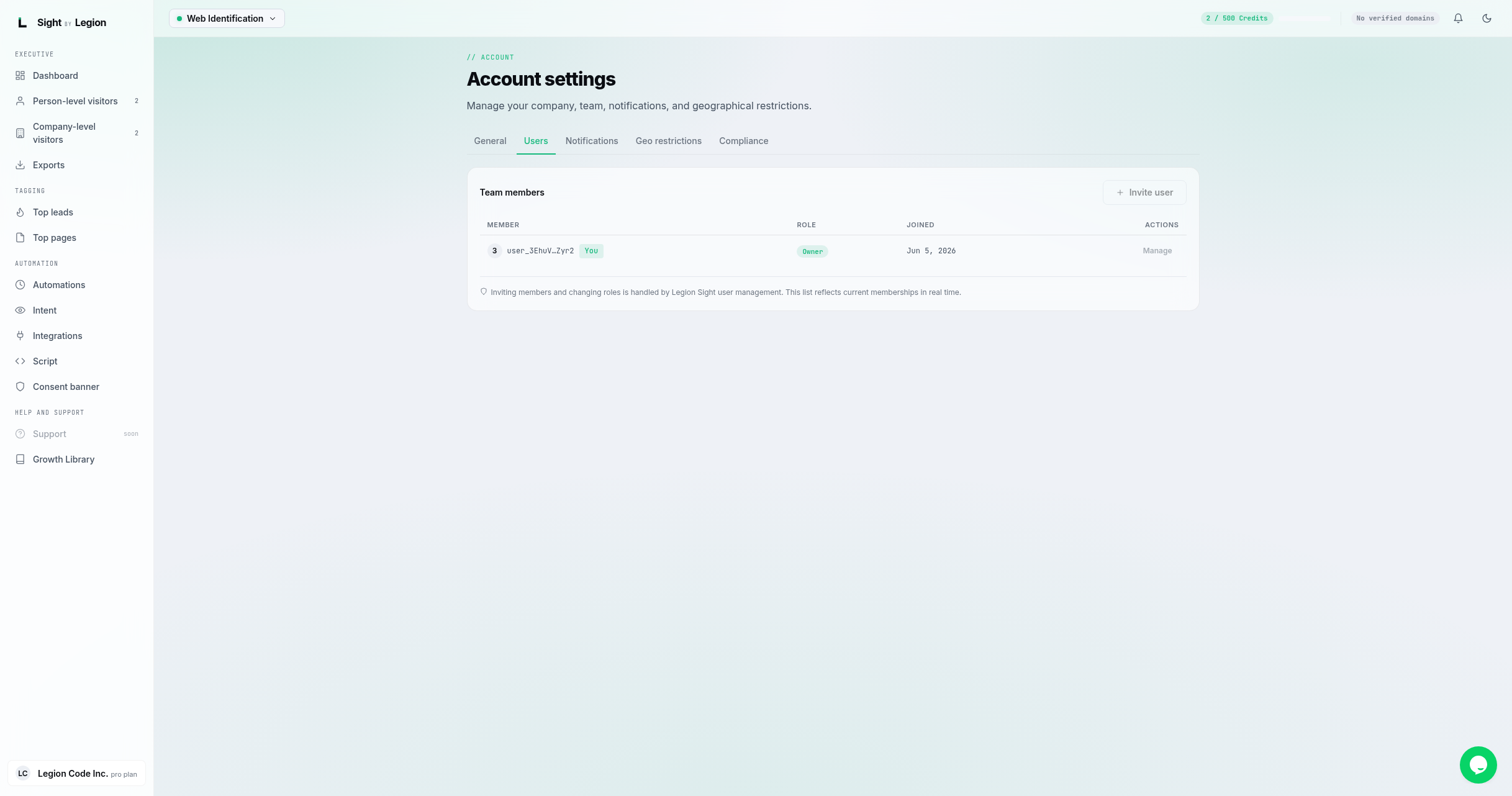
- Changing a teammate's role. Role changes and invitations are handled through OSPRY user management; the Users tab shows current memberships in real time. See Managing users.
- Agency visibility. Only agency accounts show the Agency group and the sub-account console, and that console is available to agency admins.
- If you cannot see a setting, it is almost always because your role does not have access. Ask an owner or admin.