
Billing and plans
Geo restrictions and consent
What this does
Controls where OSPRY is allowed to identify visitors. By default, OSPRY identifies US data subjects only. This page lets you enable company-level identification outside the United States, but only after you confirm you run a consent-management tool.
Steps
- Open the account menu and choose Geo restrictions (or go to Account settings and open the Geo restrictions tab).
- Read the explanation: US-only is the default and the foundation of the product's legal posture.
- To allow identification outside the US:
- First turn on I run a consent-management tool (the attestation). You can optionally name the tool (for example, CookieYes).
- Then turn on Enable company-level identification outside the United States.
- Click Save restrictions. The status pill shows US only or Global tier on.
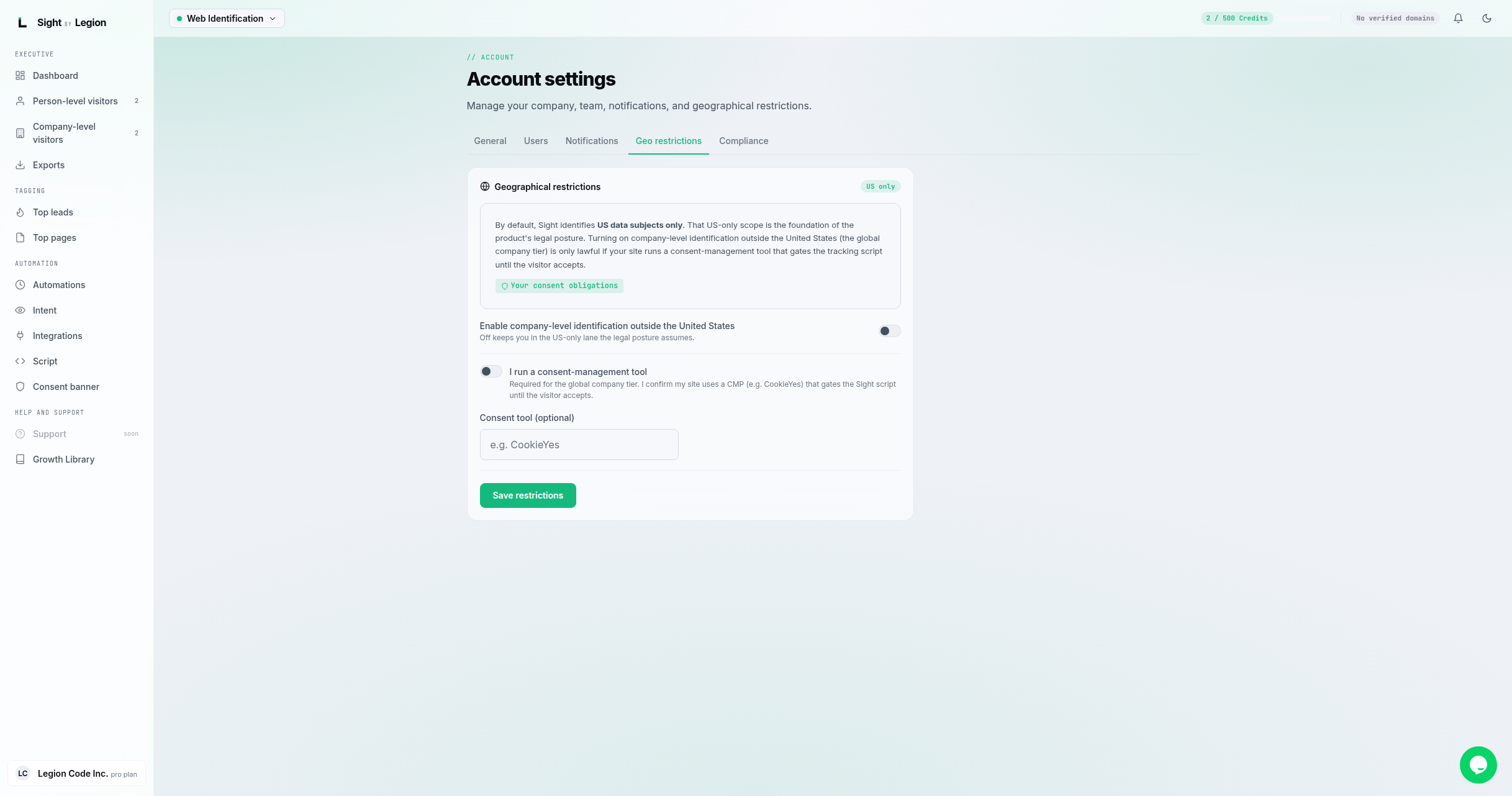
The gate
You cannot enable out-of-US identification without confirming the consent tool. If you try, the page tells you to confirm a consent-management tool first. If you later remove the attestation while out-of-US identification is on, OSPRY turns it back off automatically and tells you why.
Tips & FAQs
- Owners and admins only. Members can see the page but cannot change it; the page says only an owner or admin can change geographical restrictions.
- Why the requirement? Identifying visitors outside the US is only lawful if your site runs a consent tool that gates the OSPRY script until the visitor accepts. The built-in consent banner is one way to meet this.
- Compliance checklist. The Account settings Compliance tab tracks related confirmations (consent banner installed, cookie notice added, opt-out link published) and shows recommended notice language and data-subject-request links.
- It is audited. Changing this control is recorded for compliance.