
Installing the script
Install the tag
What this does
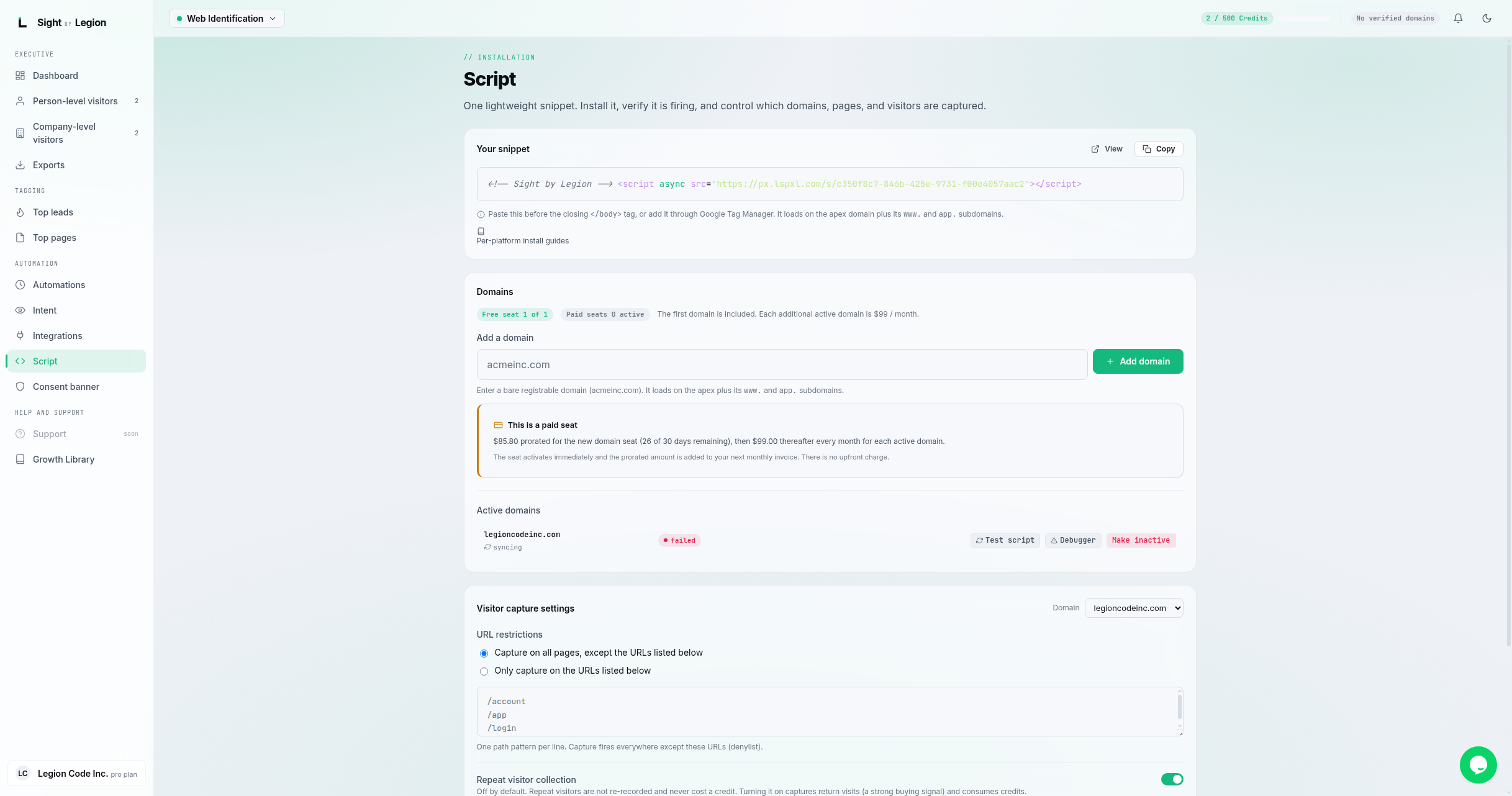
Adds one tag to your website that turns on visitor tracking and, if you have set one up, your consent banner. One tag covers both: OSPRY loads your consent banner first (when it is enabled), then the tracking pixel, so the pixel always waits behind the banner. You install it once per site, then verify it is firing.
Steps
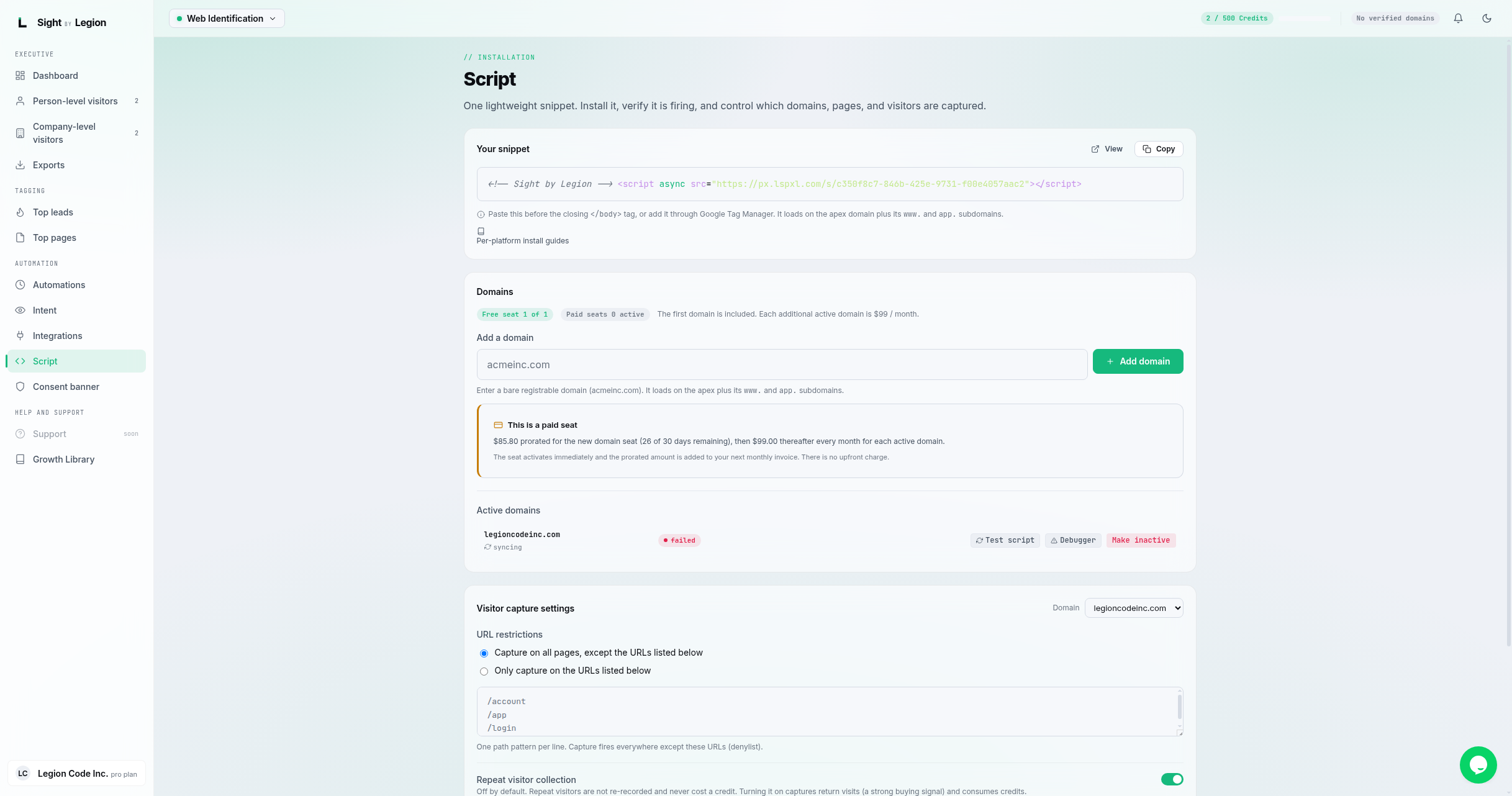
- Open Observe -> Script in the sidebar.
- In the Your snippet panel, click Copy to copy your tag. It looks like this (your account id is filled in for you):
<!-- OSPRY by Legion -->
<script async src="https://px.lspxl.com/c/your-account-id"></script>
- Paste this into the
<head>of every page, as early as possible, before your other scripts, or add it through Google Tag Manager. - Add your domain in the Domains panel if it is not already listed, then install the tag on that domain.
- Publish your site, then verify the script (see Verify the script is working).
Content-Security-Policy
If your site runs a Content-Security-Policy, allow these hosts:
- script-src:
px.lspxl.com,cdn.lgncmp.com - style-src:
cdn.lgncmp.com - connect-src:
lgncmp.com,i.lspxl.com,popup.lspxl.com,sec.lspxl.com,t.lspxl.com
Where it loads
The tag loads on your apex domain plus its www. and app. subdomains. It is identical across platforms; only where you paste it differs. Per-platform guidance is available behind the Per-platform install guides note on the Script page (WordPress, Google Tag Manager, Webflow, Framer, Shopify, Squarespace, Wix, HubSpot CMS, Kajabi, and code-level installs for Next.js, React, TypeScript, and Angular).
Installed the older two-tag version?
If you installed the pixel snippet and the consent banner loader as two separate tags, both keep working exactly as they do today. Nothing breaks and nothing requires action. When you are ready, remove both old tags and paste the single tag from this guide in their place, so you have one line to maintain instead of two.
Capture settings (optional)
Below the snippet, the Domains and Visitor capture settings panels let you control what is captured per domain:
- URL restrictions: limit capture to, or exclude, specific pages.
- Repeat visitor collection: off by default. Repeat visitors are not re-recorded and are always free. Turn it on to capture return visits (a strong buying signal); repeats stay free either way.
- Exclusion list: domains (for example, free email providers or your own internal traffic) to exclude.
After changing capture settings, click Save settings.
Tips & FAQs
- Owners and admins only. Members can view the Script page but cannot add domains or change capture settings.
- Capture paused? If capture is paused, a banner appears: settings still save, but no new visitors are captured until capture is resumed from the top bar. Adding or verifying a domain does not resume capture.
- Domains are a plan inclusion. Your plan includes a set number of domains (and seats); you are not billed per active domain. If you need more domains than your plan includes, move up a tier. See Subscription and billing.
- View the raw script. The View button opens the served snippet in a new tab so you can confirm it loads.
- No consent banner set up yet? The tag still installs your tracking pixel on its own. Add a banner any time from Set up your consent banner; once it is enabled, the same tag starts loading it too, with no snippet change needed.