
Account and team
Managing users
What this does
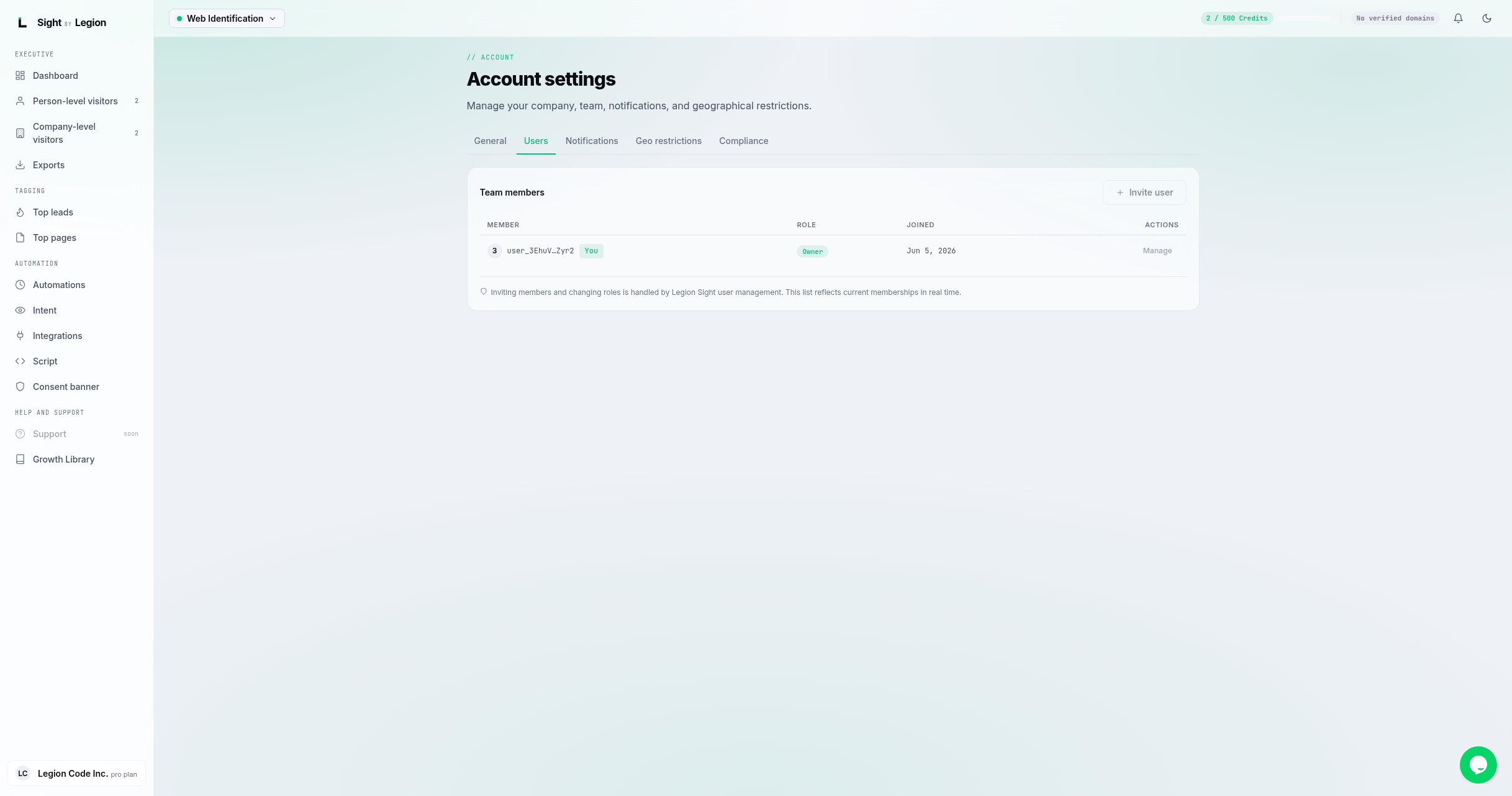
Shows your team and each member's role. The list reflects current memberships in real time.
What is on the page
A Team members table with columns:
- Member: the team member (your own row is marked "You").
- Role: a colored pill reading Owner, Admin, Member, Agency admin, or Operator.
- Joined: when they were added.
- Actions: a per-row Manage control.
In the panel header there is an Invite user button. Today both the Invite user button and the per-row Manage control are present but disabled: inviting members and changing roles are handled through OSPRY user management (the underlying identity provider), not inline on this page. The list itself reflects current memberships in real time.
Steps
- Open the account menu and choose Users (or open Account settings and select the Users tab).
- Review who is on the account and their roles.
- Note your own row (marked "You").
Tips & FAQs
- Inviting and changing roles is handled by OSPRY user management. The Invite user and per-row Manage controls on this page are disabled placeholders; invitations, role changes, and removals are performed through OSPRY user management rather than inline. This list reflects current memberships in real time.
- Roles explained. See Roles and what each one can see for what each role can do.
- Members can view this list but cannot change it.