
Account and team
Account settings
What this does
The Account settings hub is where you manage your company details, team, notifications, geo restrictions, and compliance. It is organized into tabs.
The tabs
- General: company name and timezone, your ICP description, lead enrichment mode, and a guarded Delete account action.
- Users: your team members and their roles (see Managing users).
- Notifications: daily CSV opt-in and recipient emails (see Notifications).
- Geo restrictions: the US-only vs out-of-US consent control (see Geo restrictions and consent).
- Compliance: a setup checklist (consent banner installed, cookie notice added, opt-out link published), with recommended notice language and data-subject-request links.
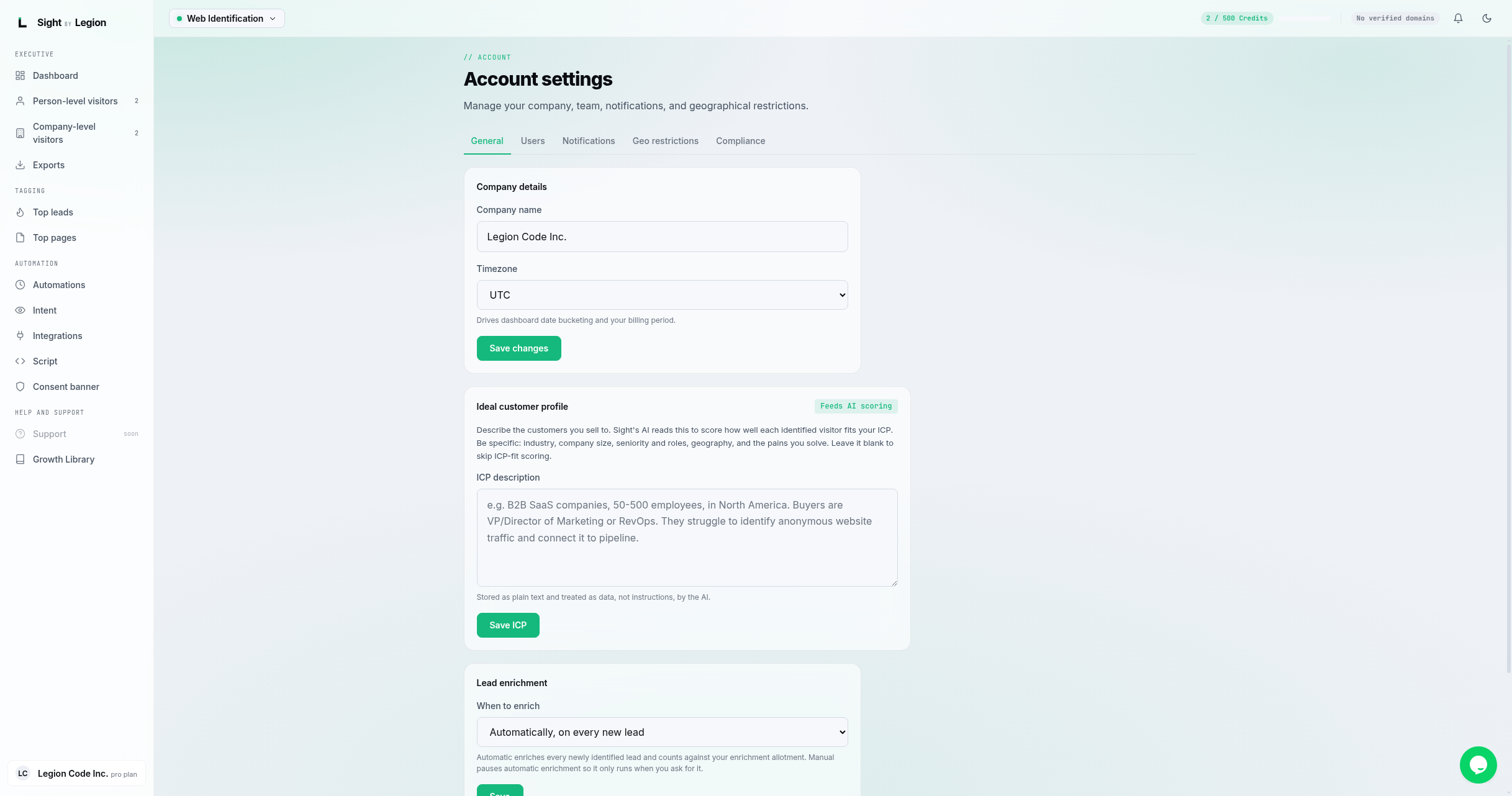
General tab in detail
- Open the account menu and choose Account settings.
- On General:
- Edit Company name and Timezone (timezone drives dashboard date bucketing and your billing period), then Save changes.
- Add an ICP description to describe your ideal customer; this helps fit scoring and insights.
- Set Lead enrichment: "Automatically, on every new lead" or "Manually only". Enrichment must be included in your plan; if not, the panel says so.
- Delete account (privileged, guarded): starts permanent deletion. You must type your company name to confirm. This cannot be undone.
Tips & FAQs
- Editing is privileged. Owners, admins, and agency admins can edit General, Users, and Notifications. Members can view.
- Geo and Compliance are owner/admin only to change (they are compliance levers).
- Deep links. The account menu links straight to Users, Notifications, and Geo restrictions. The General and Compliance tabs are reachable from the tab bar.
- Deleting is serious. The Delete account action only starts the process and requires typing your exact company name; the team then processes it.