
Exports and data
Exporting your visitor data
What this does
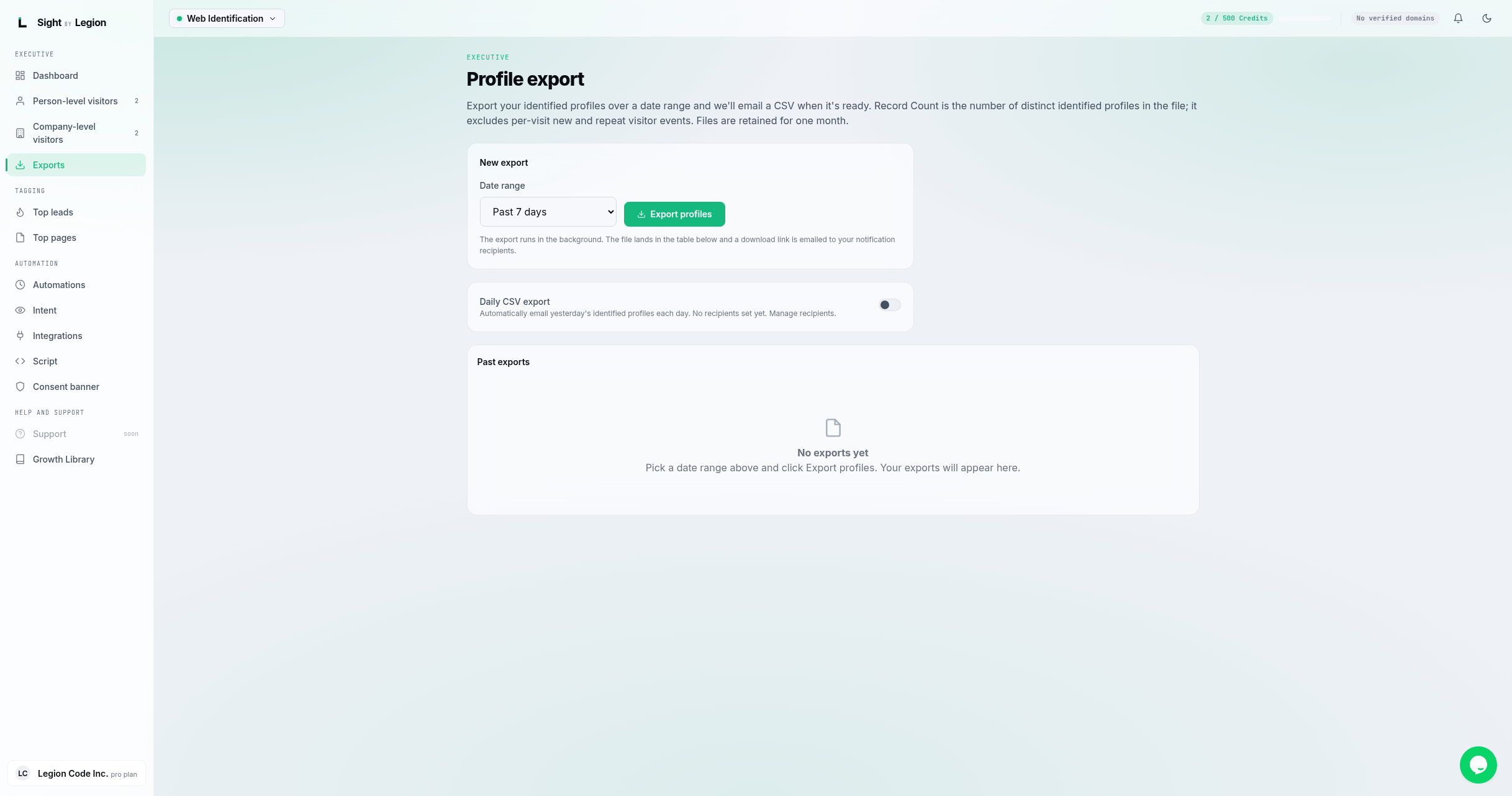
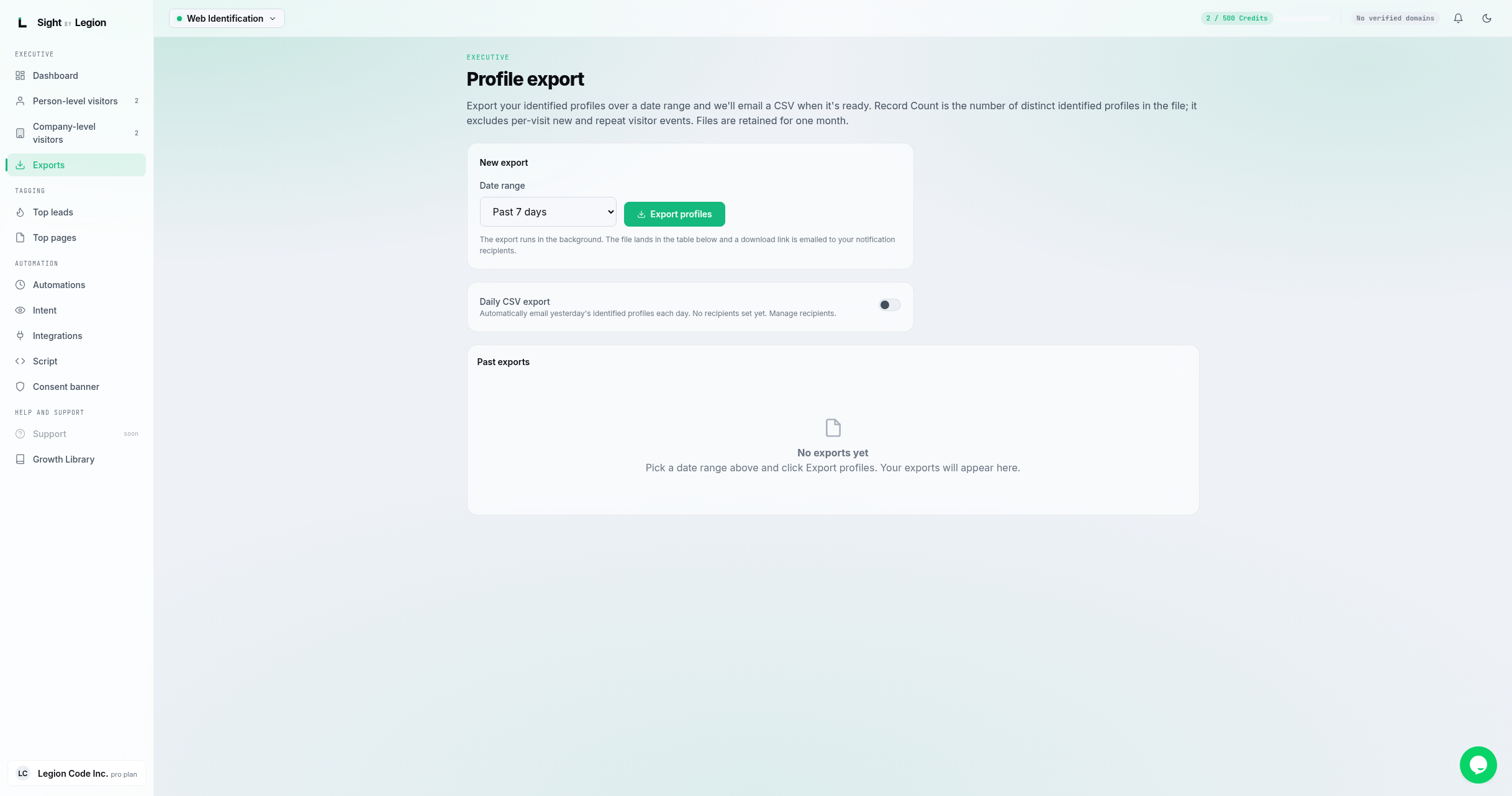
Exports your identified profiles to CSV over a date range. The export runs in the background; when it is ready, OSPRY emails a download link to your notification recipients and lists the file on this page. You can also turn on a daily export of the previous day's new profiles.
Steps
- Open Reach -> Exports (or click Export options from a visitor feed).
- In New export, pick a Date range (for example Today, or the past 3, 7, 30, 90, 120, or 365 days).
- Click Export profiles. The export is queued.
- Watch the Past exports table. Each row shows the File, Record count, Created at, and Status, with a Download button when it is ready.
Daily CSV export
Turn on Daily CSV export to automatically email yesterday's newly identified profiles each day. The panel shows how many recipients are set and links to Manage recipients (Account -> Notifications). The daily export stays off until your plan is export-eligible.
Reading the table
- Record count is the number of distinct identified profiles in the file. It excludes per-visit new and repeat visitor events.
- Status can be Queued, Building, Ready, Failed, or Expired.
- Files are retained for one month. After that they show as Expired and can no longer be downloaded; just run a new export.
Tips & FAQs
- Export is a paid capability. It is available during your trial and on paid plans. On the free tier you will see an upgrade prompt with a View plans link instead of the export form.
- Where the link goes. The download link is emailed to your notification recipients, set on Notifications.
- Daily opt-in is privileged. Only owners, admins, and agency admins can toggle the daily export.
- Background job. Large exports take a little time; the file appears in the table and the link arrives by email when it is built.